Does your server actually have the necessary serial drivers installed? It seeing the USB device itself doesn't mean it actually has created a serial port for it, or can for that matter.
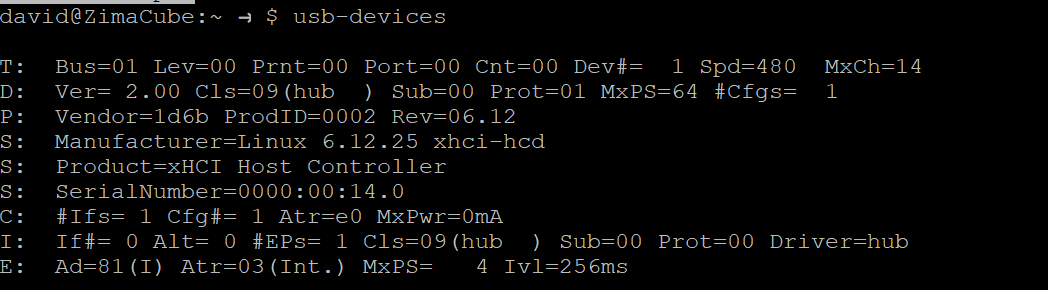
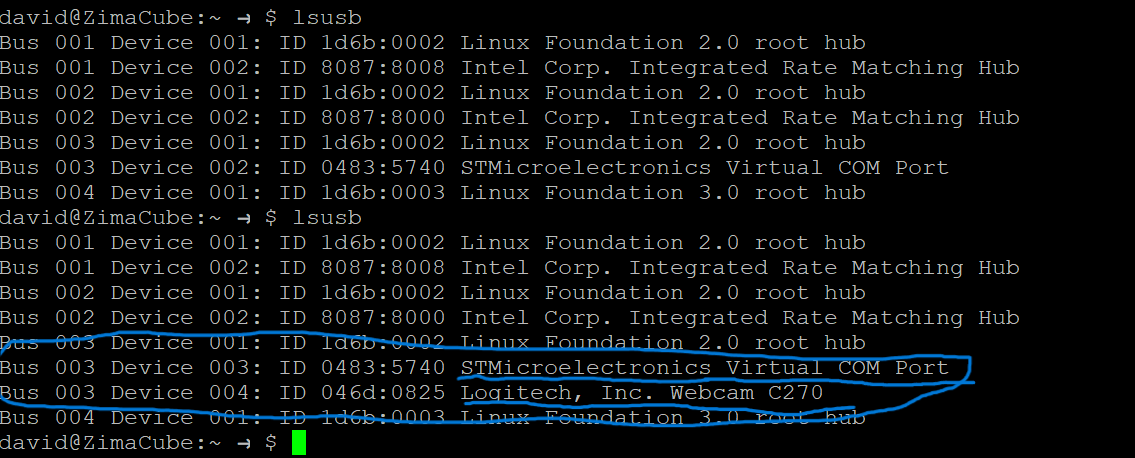
When I run lsusb it shows the cr10 printer as STMicroelectronics Virtual port, I know that's my printer because it doesn't show when I unplug it Under that is the Logitech camera I plugged in. Doesn't this show that the usb ports are working? I still can't connect to the printer.
I don't understand how doing a search for my camera helps. I was showing that the usb ports see devices when plugged into them. The problem is Octo print still won't see the usb ports. Could it being seen as a virtual port have something to do with it? If so what can I do about that?
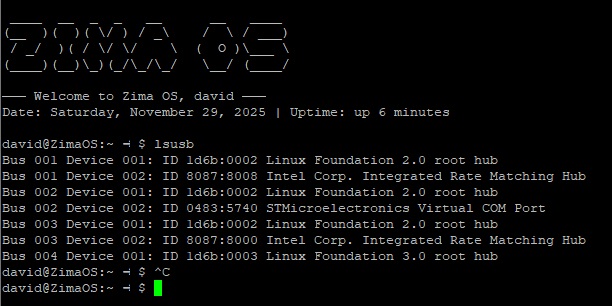
The second one is being connected to my zimaos server. This is the one I am trying to get working. From what I am seeing they show the same for ttyACM0, but the raspberry PI works and the zimaos doesn't.
In the future, copy the text here using the </> tool.
I'm guessing (since I don't have a Zimaos server)...
If you put /dev/ttyACM0 in the Serial Port dropdown, what happens?
If that doesn't work, there may be a permissions issue...
To check the permissions of a serial port in Linux, you can use the ls -l command on the device file representing the serial port.
Execute the ls -l command followed by the full path to your serial port device file. For example:
Code
ls -l /dev/ttyUSB0
This command will output information similar to this:
Code
crw-rw---- 1 root dialout 188, 0 Nov 2 18:33 /dev/ttyUSB0
In this output:
crw-rw---- represents the file permissions. The first character c indicates a character device. The next nine characters represent read, write, and execute permissions for the owner, group, and others, respectively. In this example, rw- for the owner (root), rw- for the group (dialout), and --- for others.
root is the owner of the device file.
dialout is the group that owns the device file.
Check user group membership: To determine if your user account has the necessary permissions, check if your user is a member of the group that owns the serial port device file (e.g., dialout). You can do this by running:
Code
groups <your_username>
Replace <your_username> with your actual username. If dialout (or the relevant group) is listed in the output, your user is a member of that group and should have the permissions granted to the group.
If your user is not in the correct group and you need access to the serial port, you can add your user to the group using the usermod command (requires sudo privileges):
Code
sudo usermod -a -G dialout <your_username>
Remember to log out and log back in for the group changes to take effect.