I am not a camera expert but after looking at the webcamd.log (see below) in your bundle it looks like the camera is connected correctly but the camera doesn't support MJPG.
I couldn't find any detailed technical information on this camera. I did see "Sensor: 5-megapixel OV5647 sensor" so the dtoverlay should be correct.
I can suggest two experiments that might shed some light. First, try the OctoPi 1.1.0 cam
version which will use different (libcamera) based software to interface with the camera.
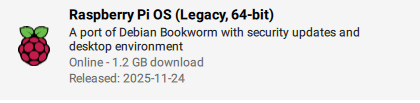
Second, use the RPi imager to download a legacy version, the following would be my choice:
Then use the octoprint_deploy script to install OctoPrint. This should use ustreamer instead of mjpg_streamer.
If neither of these two experiments results in a working camera, the error messages they produce may provide some additional insight.
Running ./mjpg_streamer -o output_http.so -w ./www-octopi -n --listen 127.0.0.1 -i input_uvc.so -r 640x480 -f 10 -d /dev/video0
MJPG Streamer Version.: 2.0
 i: Using V4L2 device.: /dev/video0
 i: Desired Resolution: 640 x 480
 i: Frames Per Second.: 10
 i: Format............: JPEG
 i: TV-Norm...........: DEFAULT
 i: Could not obtain the requested pixelformat: MJPG , driver gave us: YUYV
    ... will try to handle this by checking against supported formats.
    ... Falling back to YUV mode (consider using -yuv option). Note that this requires much more CPU power
Unable to query that the FPS change is supported
: Inappropriate ioctl for device
libv4l2: error turning on stream: Invalid argument
Unable to start capture: Invalid argument
 i: Can't enable video in first time
 i: cleaning up resources allocated by input thread
Done bringing up all configured video devices
With regards to my OctoPrint software. Are you suggesting that install the OctoPi 1.1.0 w/OctoPrint 1.11.4 (New Camera Stock) instead of the current OctoPi with OctoPrint version?
Can I backup my settings in OctoPrint v1.11.6 and reinstall the into OctoPrint v1.11.4 w/New Camera Stock?
Yes, I am suggesting exactly that. Use the new camera stack version of OctoPi. If you have another microSD card, use that instead of overwriting the current one.
Yes, you can do that too. Don't forget to download the backup file from the old system. When you first start the cam version, there will be an option to use a backup file.
I was able to get my RaspberryPi camera to work using the OctoPi 1.11.4 (New Experimental Camera), then restore my backup settings and then update to OctoPi v1.11.6.
My webcam streaming is working. But when I try to take a screenshot via going to [IP_Address]:8080. I get an Unable to connect error webpage.
So, I'm making progress. But not quite 100% setup yet.
Solution to Raspberry Pi Camera v1.3 not working on OctoPi v1.11.6.
Backup your current setting in OctoPi v1.11.6 and then download that backup to your local computer.
Turn off/Unplug your Raspberry Pi and remove your microSD card.
Start Raspberry Pi Imager. Click on the Operating System tab. Then click on Other specific-purpose OS -> 3D printing -> OctoPi -> OctoPi (new experimental camera stack) OctoPi 1.1.0 with OctoPrint 1.11.4.
Insert your microSD card into your computer and select the microSD card as the storage location in the Raspberry Pi Imager. Then click next.
You can edit or change the settings for your OctoPi installtion (hostname and password, Wi-Fi and password, SSH, etc...)
Once done with setting up your preferences. Click Yes and click yes again to confirm that you're aware that everything on the storage device you selected will be erased and that OctoPrint v1.11.4 will be installed on it.
After OctoPrint v1.11.4 installed onto your microSD card. Remove the microSD card from your computer and reinsert the card into your Raspberry Pi. Then boot up your Raspberry Pi again.
Open your browser and enter your OctoPi's [OctoPi_IP_Address] in the URL bar.
Skip any props to update to OctoPrint v1.11.6 for now.
Click on "Restore Backup" and go to the folder on you computer with the backup of your OctoPrint setting you made in step 1.
Once your OctoPrint settings backup has been restored. Update to OctoPrint v1.11.6.
Once the update is complete. Made a backup of your current setup in OctoPrint v1.11.6 with new experimental camera stack.
Check your webcam's snapshot by typing [OctoPi_IP_Address]/webcam/snapshot.
Check your webcam's streaming by typing [OctoPi_IP_Address]/webcam/stream.
You should have your OctoPrint up and running now and can continue with any other 3D printing setups or start printing via OctoPrint.
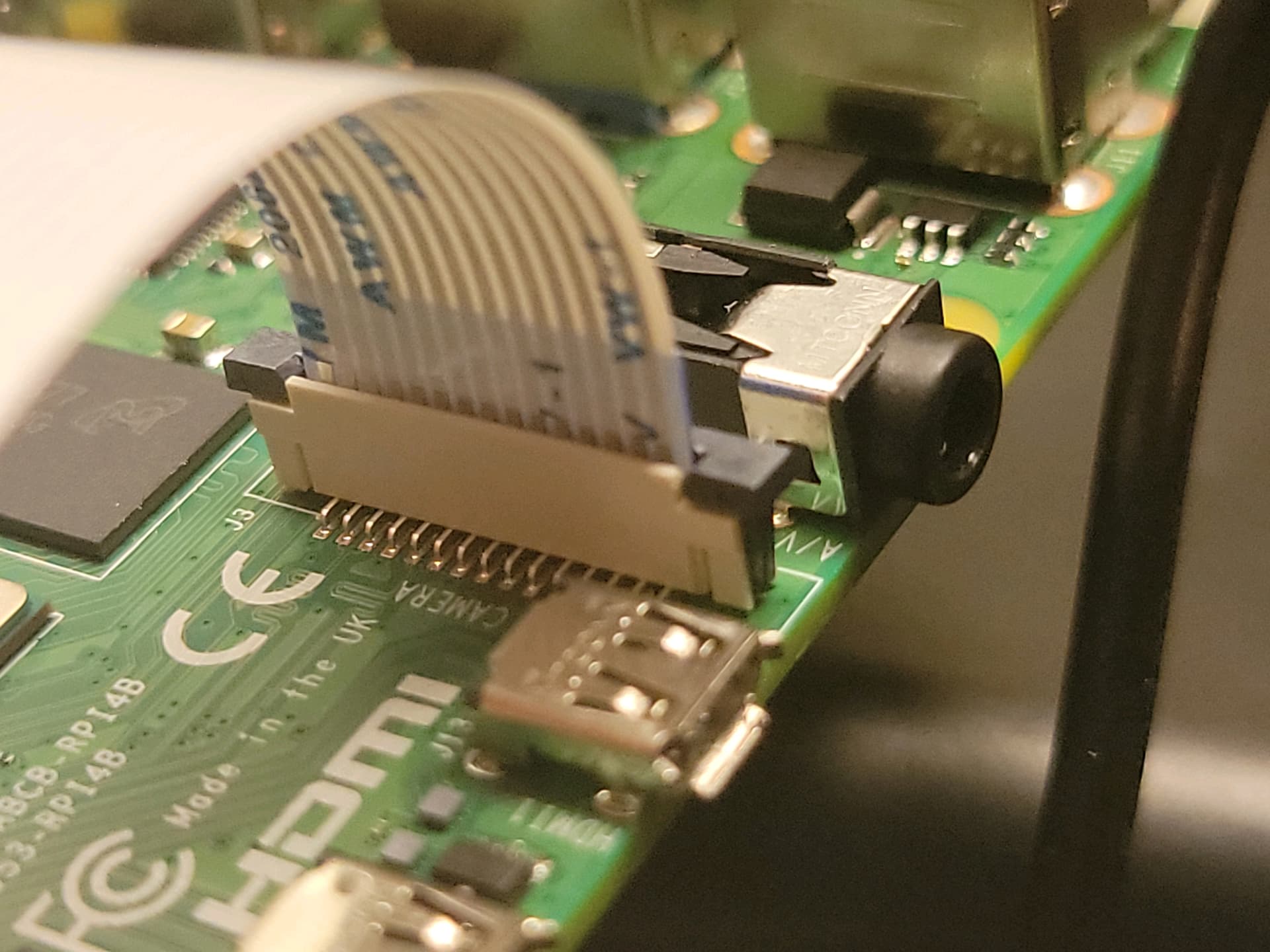
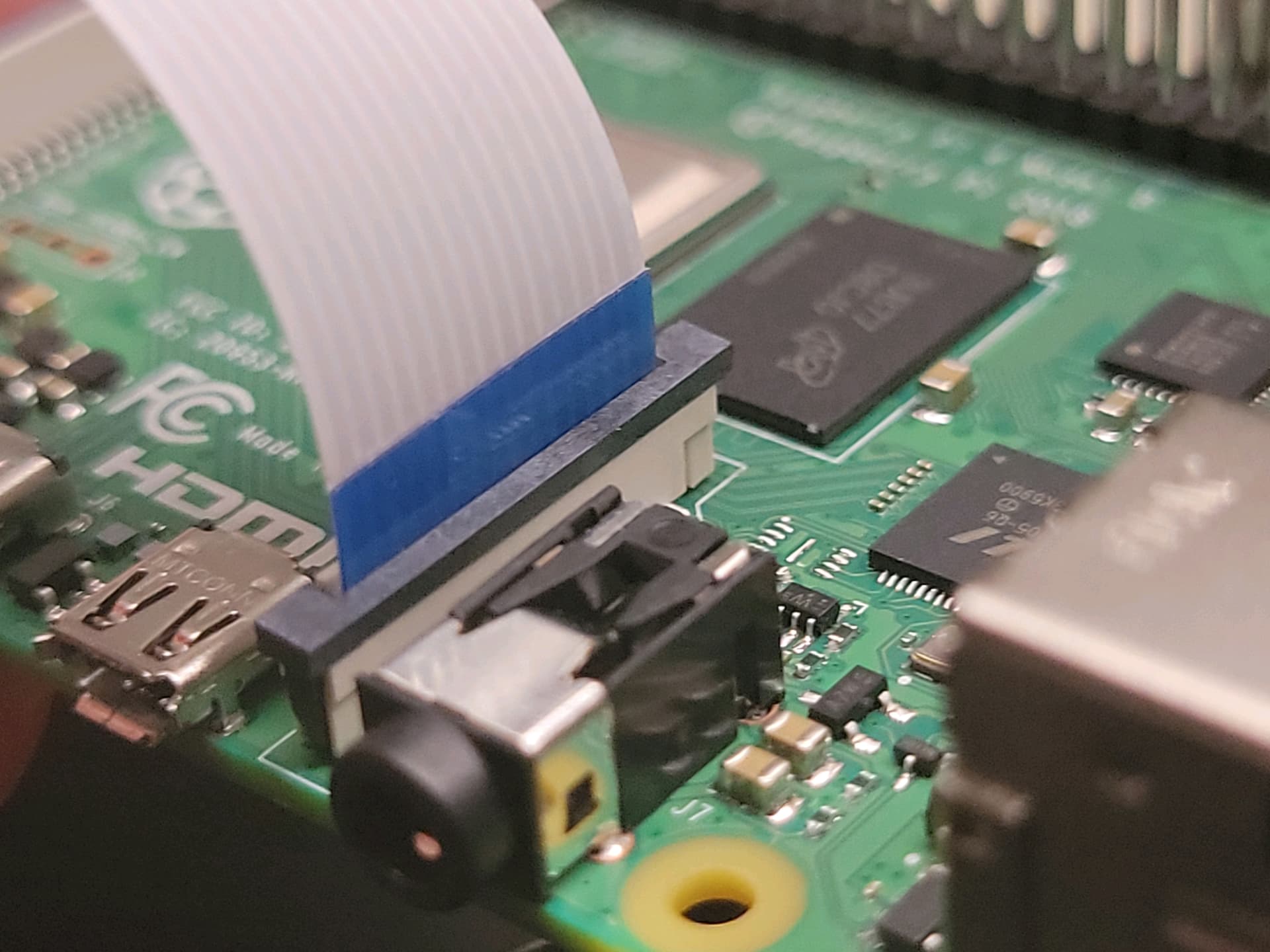
If your don't see any image from your camera after going through this solution. Check and make sure you ribbon cable is inserted all the way down. Check that the black bar is pushed dorm and that the blue back tap is facing the USB port side of the Raspberry PI board.
If all else fails. make a new post about your issues here on the OctoPrint Community Forum.