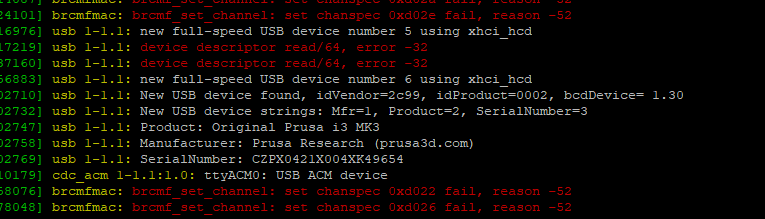
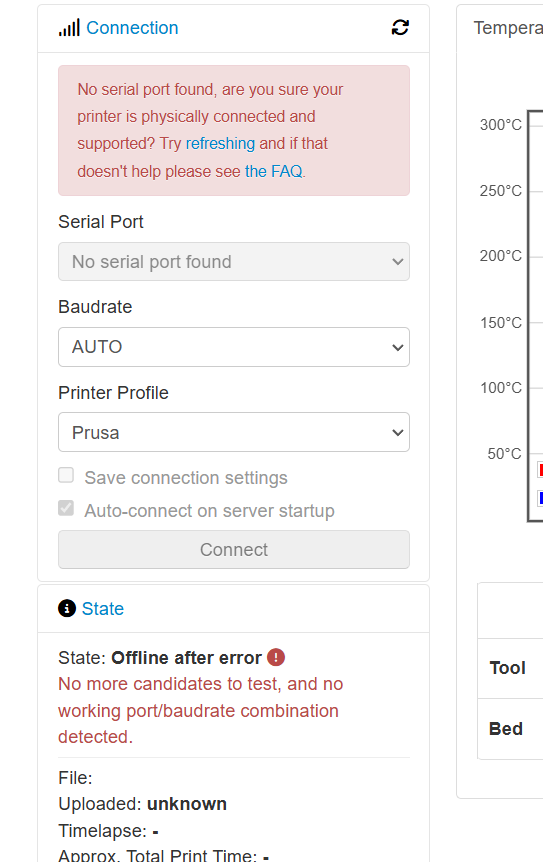
What is the problem?
I recently had to rebuild my PC due to a win11 update issue. when I tried to establish my octopi connection, it failed
What did you already try to solve it?
I looked at the FAQ and determined that I needed help. I created the Bundle as required, and ran "dmesg" on the RPi 3. results are attached.
Have you tried running in safe mode?
no i don't know how
Did running in safe mode solve the problem?
NO
Systeminfo Bundle
octoprint-systeminfo-20260205165317.zip (7.0 KB)
Additional information about your setup
RPi 3 updated, Octopi latest download, all cables are from the unit that was working fine.
Ok, appears you are actually using the windows install of OctoPrint that I made, and not running OctoPrint on the pi. This will generally work, but you would connect your printer directly to your windows machine. And if that that's what you are doing then there are a couple of things you would also need, in most cases the CH340 driver for windows needs to be installed.
The way you connect to OctoPrint running on a pi is to access it's ip address or .local address via a browser. So if your pi's ip address is 192.168.1.2 you would go to http://192.168.1.2/.
I replied to your response via the email. I was surprised by your comments regarding the way I was running the system. I know that the procedure was followed by data that I got from the webpage when I first started a couple years ago. I was intrigued about your comment regarding the CH340 device. I went to the devmgr to see if there was any info regarding a serial port. There was nothing. I plugged another device in to see if it was working and promptly brought up serial port.
However, I then noticed that the Octoprint screen said that I was connected. There was a short gcode that I had printed some time back, so I successfully printed it with no errors. The only problem that I noticed was that the webcam was extremely jerky which it was not before. But otherwise, the print was fine. After it completed, I went to the settings page and elected to make a Backup that I promptly placed in my Documents folder on the PC. 30 minutes later, I went back to the system and discovered that I was no longer connected. Nothing I did would bring it back into operation. The backup/restore page reported that there was no backup. So it appears that I have a gremlin in the system. But at least I know the system is capable of working. So now I have to start the process of reseating/cleaning connections and cables. I just love these kinds of problems.
Thanks for your help
In pursuing this further, I tried using the method of connecting to the RPi to the PC by using a browser and entering 127.0.0.1:5000. But no matter which way I try, results are the same. Octoprint stills reports "no serial port found". Since I have used different cables, it appears that I must have a hardware issue either the RPi or the Prusa MK3. I have to come up with a way to test each end. On the RPi, I have tried both v2 and v3 ports with no difference. I'll have to search for a way to verify the input to the printer.
Any suggestions would be greatly appreciated.
Use a USB flash drive to test the USB ports on the RPi.
If you have recently upgraded the firmware on the Prusa MK3, see https://community.octoprint.org/t/solved-octoprint-wont-connect-to-my-prusa-mk3/13509
- Unplug USB cable from printer
- SSH to the pi (or login locally with keyboard and monitor on the pi)
- run the command
dmesg -w
- plug in USB cable to printer
- look at what got added to the dmesg result in your ssh session
- press ctrl+C to exit dmesg
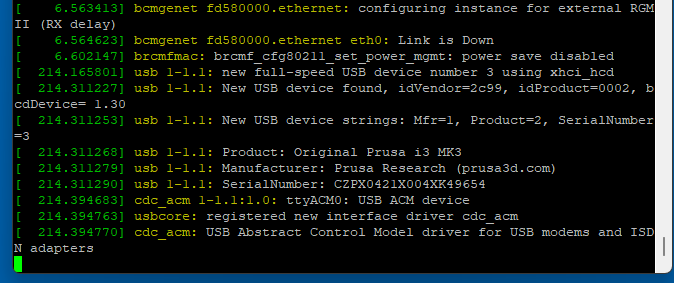
If you see anything related to USB serial then your printer is getting detected.
You also mentioned Prusa MK3 now, make sure the RPi port setting on the printer is still set to OFF.
Thanks to both for your replies.
- I checked all four ports on the RPi and I got a response with a different number for each port.
- I re-flashed the firmware just to make sure, but it already had the correct firmware. At least that seemed to work fine.
- The results of the dmesg -w are attached and the last several lines would tell me that the RPi knows the printer is was added.
- The RPi port is still turned off.
- The system still reports "No serial port found"
Another mystery.
Let's take a step back and ask, what is the URL you are using to connect to OctoPrint? As I mentioned before, the logs in the system info bundle you provided indicates that you installed OctoPrint on your windows machine. If you want to use that installation you would connect your printer to your windows 11 machine. Otherwise the URL you should be opening from your windows machine is the IP address of your pi device.
Let's see if I have the correct understanding here. When I first installed Octoprint, I followed the instructions that came from the cite where I had downloaded and installed the Windows software that provided me with a shortcut on the desktop that started the program. I also followed the procedure to install the software on the RPi. This involved using RPi Imager and selecting the specific version for Octoprint. The PC connected to the RPi via wifi using the i/p address that I assigned during the RPi image creation. In your first response to my plea for help, I realized that I really did not need the Windows software at all. I simply open a browser and enter the URL 127.0.0.2:5000 . This opened the same UI that I got when I opened it from the Windows shortcut.
Am I missing something here? Using the Windows method worked fine for me for almost two years.
It seems more than likely that I am failing to see the forest for the trees!
Thanks for your patience.
What instructions?
What Windows software?
When you run OctoPrint/OctoPi on a Raspberry Pi, the only software you need on the Windows PC is a browser, maybe some software for SSH. There is no need to install special software for OctoPrint in the PC.
This is not a valid IP address. You need to know the ip address of your pi and use that in your browser. After you login to the pi you should see the addresses to use, like this.
Sorry. I see that it is invalid because I mistyped it. I meant to say 127.0.0.1:5000
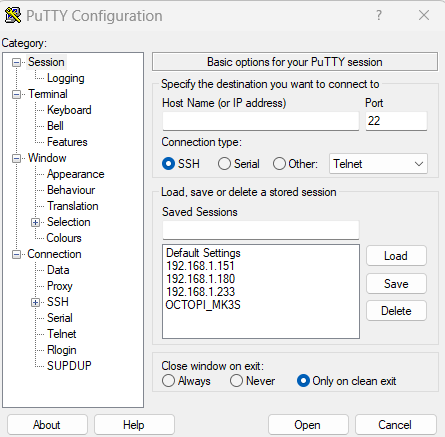
The windows installer came from Github and I think it was developed by the other gentlemen (jneilliii) who is responding to this post. I got there by "googling" , "how to install Octoprint on win 11" I have since learned they appear to be similar methods. I get there by using a feature of PuTTY that allows me to save/load names of I/P addresses of several RPi that I use for other projects around the house. As seen here:
BREAKING NEWS
While in making sure I had everything ready to continue this discussion, I downloaded and installed the latest Windows installer package from Github. When I looked a the "All Programs" from the START menu, there was a notice of an update to the Octoprint. I selected that and was taken to a command prompt to run the update, which I did. It proceeded to close the services, then made some changes to python and then re-started the services. When I clicked on the shortcut for Octoprint, it opened the GUI and reported that it was FULLY operational. I stopped and started it several times and it never hesitated.
Persistence and your help has paid off.
You're still not getting it. If you used my installer in Windows you don't need the pi in the mix at all. You connect your printer directly to the Windows machine.
If you flashed OctoPi to the pi then you would use the name or IP address of the pi to connect to it in your browser and the USB connection from your printer would go to the pi.
Basically you don't need both, choose one or the other.
1 Like